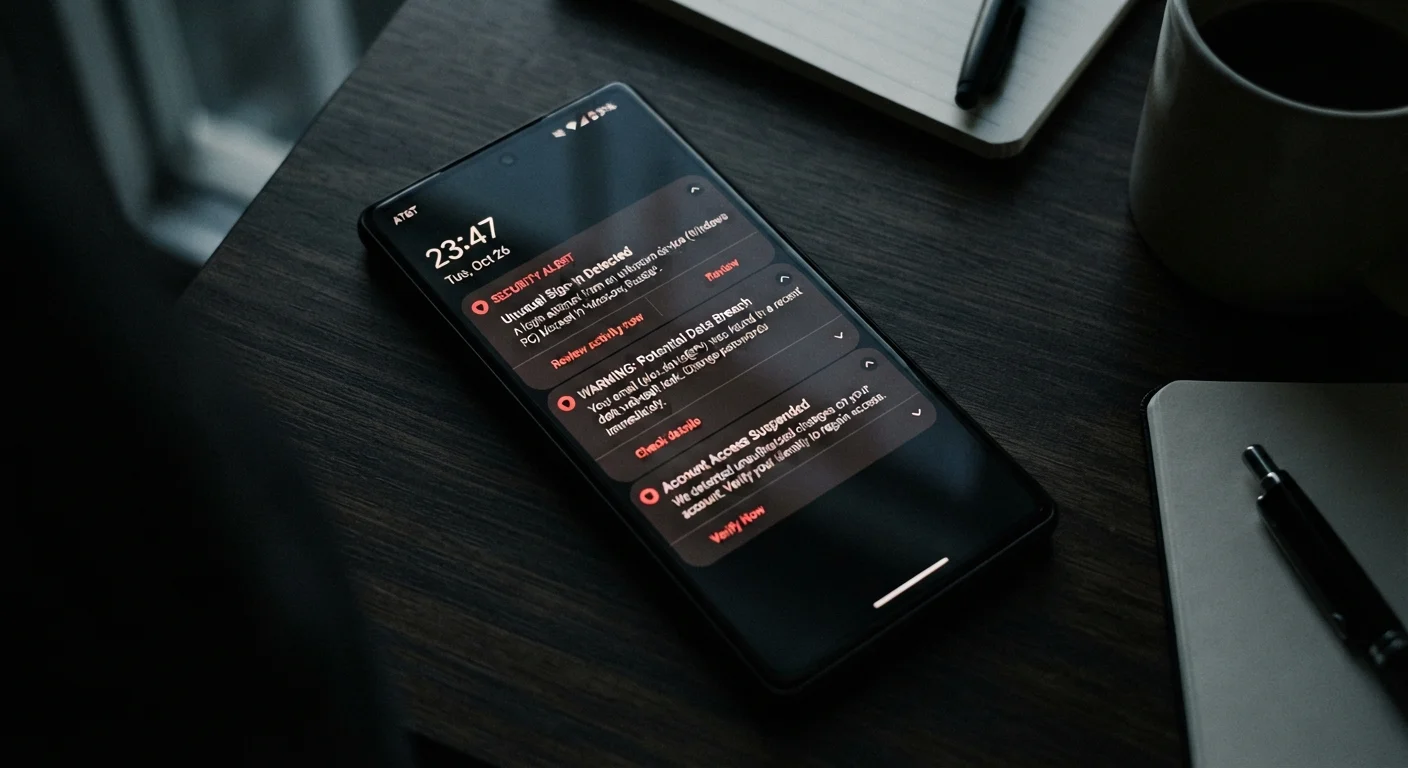
How to Tell the Difference Between a Slow Device and a Compromised One
Device slowdowns are frustrating, but they don't automatically signal a security problem. Ageing hardware, software updates, and storage limits can all cause sluggishness — and it's worth understanding that distinction before assuming the worst. See our explainer on why phones slow down over time for more on normal wear-related causes.
What separates routine slowdowns from a potential compromise is a cluster of specific, unusual behaviours occurring together — particularly ones you can't easily explain. Malware, spyware, and unauthorized account access tend to leave footprints: unexpected activity in apps or accounts you didn't initiate, hardware behaving oddly at odd hours, or settings that seem to have changed on their own.
Use the checklist below to audit your device systematically. If several items flag as concerns at once, that pattern is more significant than any single symptom in isolation.
Context Matters — Don't Assume the Worst Immediately
Many symptoms on this checklist have innocent explanations: a recently installed app, an OS update running in the background, or a battery reaching the end of its lifespan. The goal of this checklist is to help you notice patterns, not to cause alarm over any single event. If you're seeing multiple warning signs simultaneously — especially unexpected account activity combined with device behavioural changes — that's when taking action becomes more urgent.
Your Device Compromise Checklist
Work through each group methodically. For items marked must, act on them immediately if you spot the warning sign. Items marked should represent strongly recommended checks even when nothing seems obviously wrong.
Behavioural Warning Signs
Data and Network Activity
Account and Login Activity
Financial Red Flags
Device Settings and Permissions
After completing this checklist, consider strengthening your overall account hygiene. Our guide on keeping your digital accounts secure without becoming a security expert walks through practical, jargon-free habits anyone can build.
What to Do Right Now If You Suspect a Compromise
Speed matters, but panic doesn't help. Work through these responses in order: first contain the situation, then investigate, then recover.
Disconnect from the internet if you believe active unauthorized access is happening — this cuts off a remote attacker's connection. Then change passwords for your most sensitive accounts (email, banking, primary social accounts) from a different, trusted device if possible, since your compromised device may have a keylogger recording what you type.
Enable two-factor authentication (2FA) on any account that supports it. This requires a second verification step — usually a code sent to your phone or generated by an app — making it significantly harder for someone using stolen credentials to access your accounts.
Don't Use the Suspect Device to Investigate
If you genuinely believe your device has been compromised, avoid using it to check sensitive accounts or change passwords — any keylogger or spyware present could capture what you type. Use a separate trusted device, such as a family member's phone or a public library computer, to take your initial recovery steps. Contact your bank directly by phone if you suspect financial fraud is underway.
If your device is a work-issued computer or phone, contact your employer's IT or security team immediately rather than attempting to resolve it alone — corporate data may be involved and there are often specific protocols to follow.
Traveling when you notice something suspicious? The risks can compound in unfamiliar environments. Our article on digital security while traveling covers targeted guidance for those situations. Smart home device owners should also review how to lock down smart home devices and your network, since a compromised phone can sometimes serve as a gateway to connected home systems.
Tools That Can Help You Investigate
You don't need to be a security professional to take meaningful steps. Several freely available or built-in tools can help you assess what's happening on your device.
Have I Been Pwned (haveibeenpwned.com)
Enter your email address to check whether your credentials have appeared in known data breaches.
Built-in device security scan (iOS/Android)
Use your operating system's native security or privacy dashboard to review app permissions, recent access, and flagged threats.
Reputable antivirus or anti-malware app
Run a scan to detect known malware, spyware, or potentially unwanted programs on your device.
Password manager
Generate and store strong, unique passwords for each account so a breach of one doesn't cascade to others.
Authenticator app (e.g. a TOTP-based app)
Generate time-limited two-factor authentication codes that are more secure than SMS-based verification.
For a broader look at your digital footprint beyond device security, our personal digital audit checklist helps you review app usage, permissions, and account exposure in one structured pass.