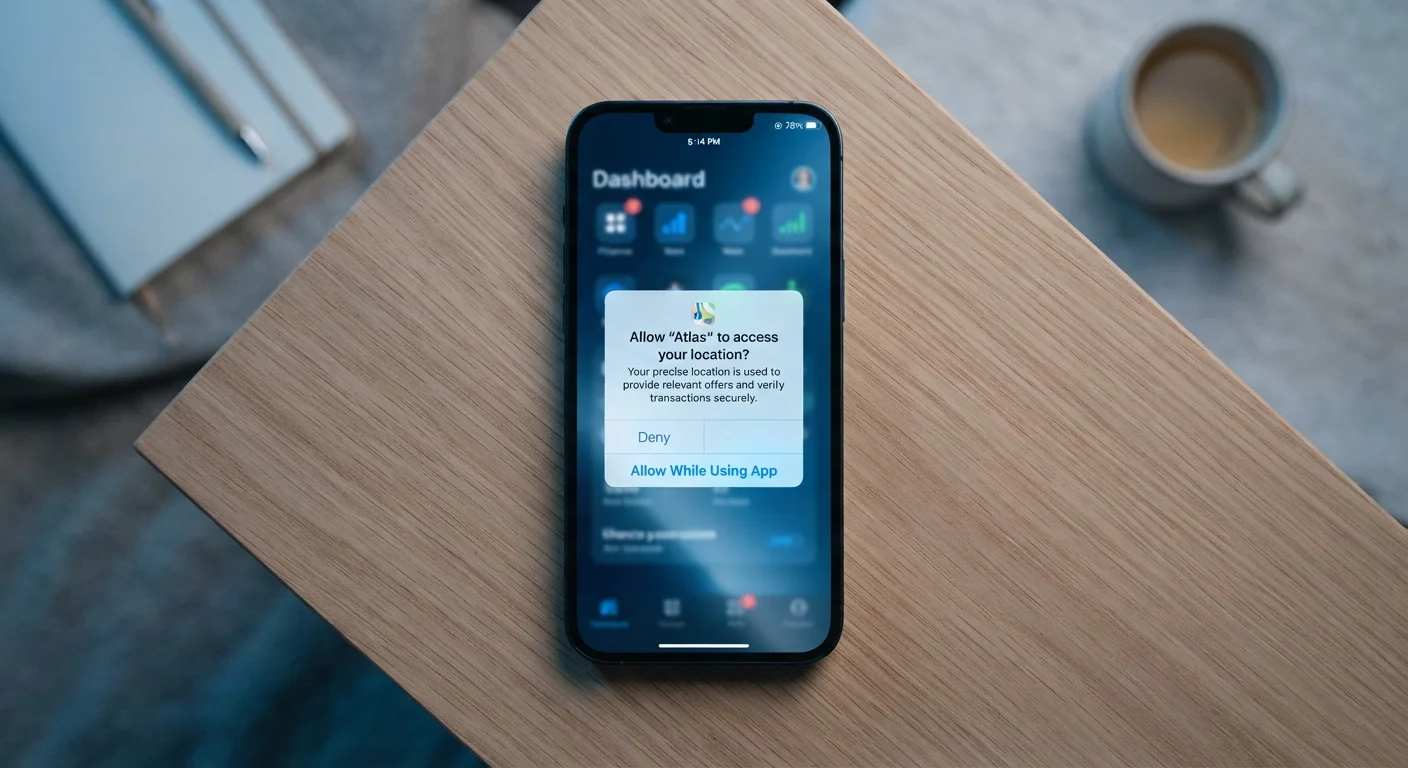
What App Permissions Actually Control
When an app asks to access your camera, microphone, location, or contacts, it's requesting a specific gate into your device's hardware or stored data. Granting that permission doesn't give the app unlimited access to your phone — it grants access to that one defined capability, governed by your operating system.
Here's what the most common permissions actually mean in practice:
- Location — your GPS coordinates, which can reveal home address, work location, and daily movement patterns
- Microphone — live audio input from your device; required for voice features, but raises questions when requested by apps that have no audio function
- Camera — ability to take photos or video; legitimate for photo apps, less obviously so for, say, a budgeting tool
- Contacts — your full address book, including names, phone numbers, and email addresses of people who haven't agreed to anything
- Storage/Files — ability to read or write files on your device, which can include personal documents and media
For a broader look at how connected devices in your home handle data, see our guide on what your smart devices actually record.
iOS Settings > Privacy & Security
Central hub for reviewing and revoking all app permissions on Apple devices.
Android Settings > Apps > Permissions
Lets you view permissions grouped by type (camera, location, etc.) or by individual app.
Notepad or Notes App
Useful for logging which apps you've reviewed and any changes you've made.
How to Audit and Adjust Your Permissions
The following steps walk you through reviewing your current app permissions systematically — from finding the right settings panel to making targeted changes that reduce unnecessary data exposure without breaking the apps you rely on.
What you will need
Open Your Device's Permission Overview
On iPhone: go to Settings → Privacy & Security. You'll see a list of permission categories — Location Services, Microphone, Camera, Contacts, and more.
On Android: go to Settings → Apps → tap the three-dot menu → Permission Manager. This shows permissions grouped by type, making it easy to see every app with microphone access in one place, for example.
Review Each Permission Category
Tap into a category such as Location. You'll see a list of every app that has requested that access, along with its current status — Always, While Using, or Never.
Ask yourself: does this app have a genuine reason to use this capability? A navigation app needing location makes sense. A recipe app needing location is worth questioning.
Adjust Permissions to Match Actual Need
Tap any app within a category to change its access level. Your options typically include:
- Always — the app can access this in the background, even when you're not using it
- While Using the App — access is only granted when the app is open
- Ask Every Time — the app must request permission each session
- Never — access is denied entirely
Downgrade permissions where a less permissive setting still allows the feature you actually use.
Check for Apps You No Longer Use
While you're in the permission manager, you may notice apps you haven't opened in months. These are worth uninstalling entirely. A dormant app with broad permissions is an unnecessary exposure — it can still collect data in the background even if you're not actively using it.
Delete apps you no longer need rather than simply restricting their permissions.
Handle New Permission Requests Thoughtfully
Going forward, when an app prompts you for a permission, pause before tapping Allow. The system dialog will usually explain why the app is asking. If the reason isn't clear or seems unrelated to what you're doing, choose Don't Allow for now — you can grant it later from Settings if a specific feature actually needs it.
This 'deny by default, grant on evidence' approach puts you in control rather than relying on the app developer's judgment about what's necessary.
Use 'While Using' Instead of 'Always'
For location-sensitive apps like maps or weather, selecting 'While Using the App' rather than 'Always' limits background tracking without affecting core functionality. Most apps work perfectly well with this restricted setting, and you can always upgrade access later if a feature genuinely requires it.
Free Apps Often Monetize Through Data
Apps offered at no cost sometimes generate revenue by sharing user data — including location history or usage patterns — with advertising partners. Unusually broad permission requests from a simple utility app (like a flashlight requesting contacts) are a signal worth taking seriously. If you can't identify a clear functional reason for a permission, consider denying it.
Permissions Can Change After Updates
App updates can request new permissions without prominently alerting you. After any major app update, revisit its permission settings to confirm nothing unexpected has been added. Some updates quietly expand data access that wasn't part of the original install.
Once you've completed a permission audit, consider pairing it with a broader review of your digital habits. Our personal digital audit checklist covers app usage, notification settings, and screen time in one structured exercise.